Creator & Manager Documentation
Welcome to ClipFarm
ClipFarm is a platform that allows creators and managers to leverage our network of professional clippers to amplify your content.
Our services are purely performance based. That means you get the most bang for your buck. Our flexible campaign configuration allows you to create any sort of campaign that you want. After that let our automation take care of the rest: we'll approve/reject clips, make payments to clippers, and give you the tools to view and analyze your clips as they come in.
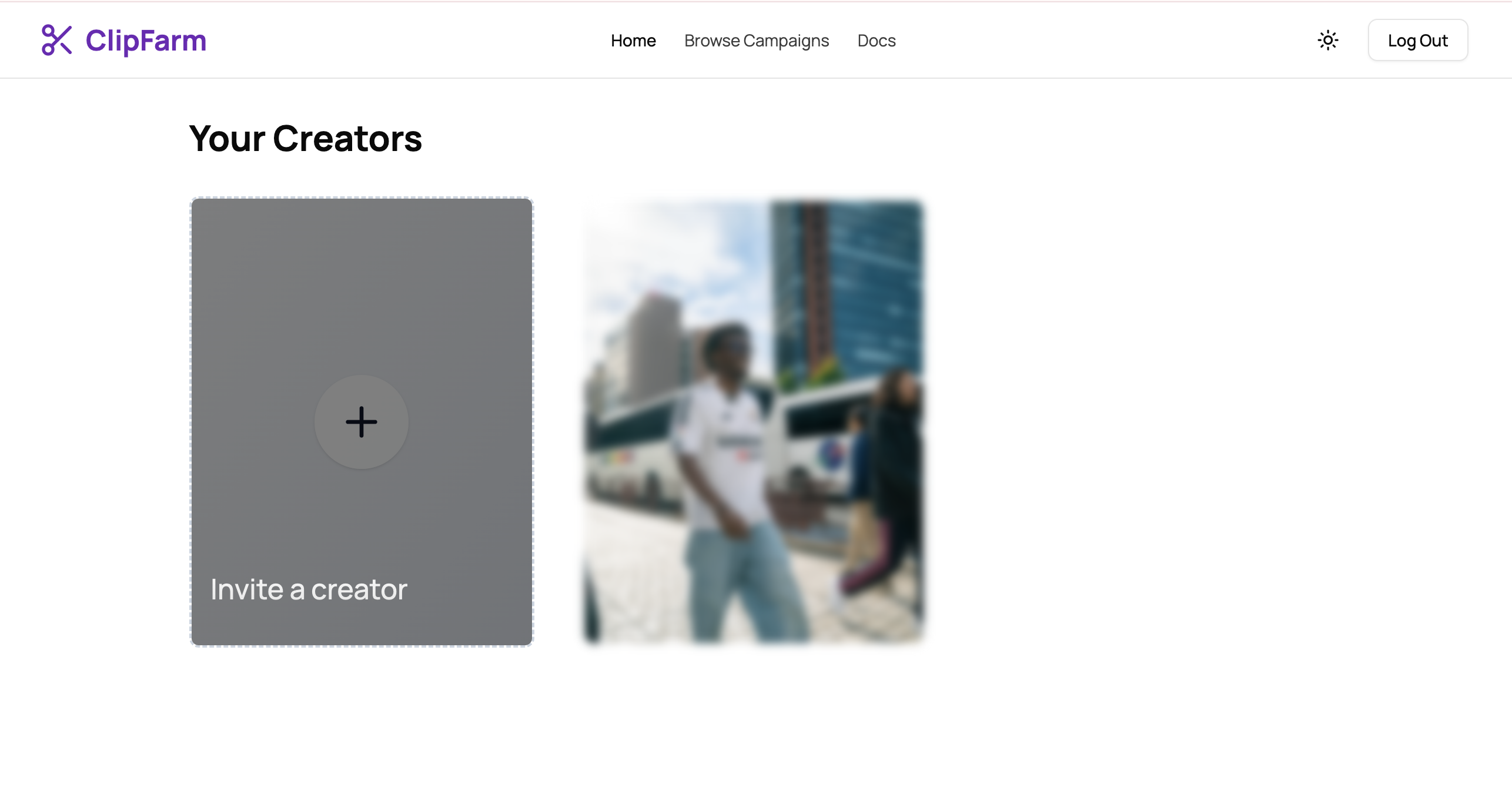
Invite your Manager
Before you create a campaign
Set up your profile picture in the upper left corner of the navbar. This will be used as your campaign's thumbnail. Next, navigate to "Link You Platforms" in the sidebar and add your social media for clippers to easily access.
Create a Campaign
As a creator or manager you can create a campaign with flexible configuration options.
- Campaign funds that are not used will be availalbe for future campaigns or can be refunded
Fund your campaign at creation or add funds later to boost engagement.
Edit Campaigns
Edit any details about your campaigns after creation.
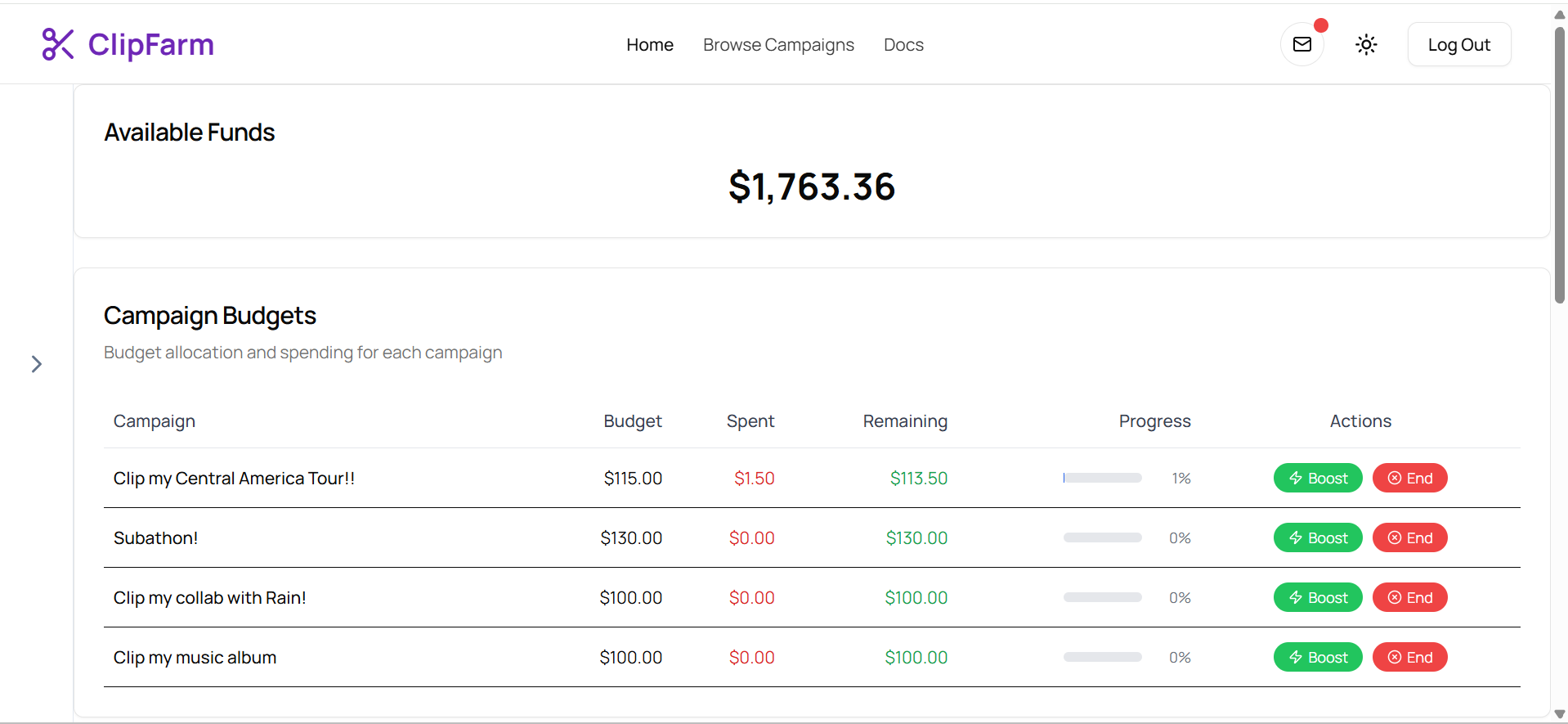
To add funds to a campaign:
- Campaigns → Click on the pencil icon on campaign card → Fill out the Funds Section
- Campaign Finances → Click on the boost button → Add your funds
View and Manage your Clips
Click on the "Campaigns" tab in the sidebar and click on your campaign card
- Every 3 hours the leaderboard will be updated. You can expand each user's place to see their clips
- Click on the "View and Manage Clips" button to see clips sorted by submitted date, view count, and platform
- More features coming soon we value your feedback!
Need Help?
For all questions and anything else we can help you with, please contact us at: